Switching one keyboard, mouse, and set of displays between a Mac and another computer can simplify a crowded desk. The right KVM switch for Mac helps share peripherals without repeatedly reconnecting cables.
These 10 picks cover modern Thunderbolt 4 and USB-C setups alongside HDMI, DisplayPort, VGA, dual-monitor, triple-monitor, and high-refresh-rate configurations. Check compatibility, display requirements, and power needs before choosing.
Best 10 Kvm Switches for Mac Picks for 2026
Best Dual-Monitor HDMI Pick

- Dual HDMI monitor support with mirrored or extended modes
- Up to 8K@60Hz and 4K@120Hz
- Four-port USB 3.0 hub with external power
Best For: Two-computer Mac or PC workstations with dual HDMI displays
Best Thunderbolt Pick
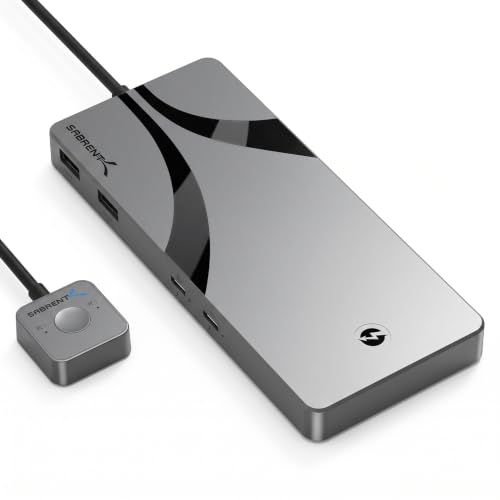
- 40Gbps Thunderbolt 4 connectivity
- Supports up to 8K@60Hz display output
- Four USB-A ports plus up to 60W charging
Best For: Thunderbolt-equipped Macs and USB-C productivity setups
Best Value Dual-Screen Pick

- Dual-monitor switching for two computers
- 8K@60Hz and 4K@120Hz support
- Four USB 3.0 ports with 12V power
Best For: Mac-compatible dual-display work and gaming desks
Best Basic Legacy Pick

- Shares one VGA monitor between two computers
- Includes USB cables and wired remote
- Supports Mac, Windows, and Sun systems
Best For: Legacy Mac setups using VGA displays
Best Dual-Monitor Docking KVM

- Two computers share two monitors and peripherals
- USB-C docking adds 100W charging and 10Gbps data
- macOS external displays mirror rather than extend
Best For: Hybrid workstations using a Mac-compatible USB-C laptop and desktop
Best Compact Single-Monitor KVM
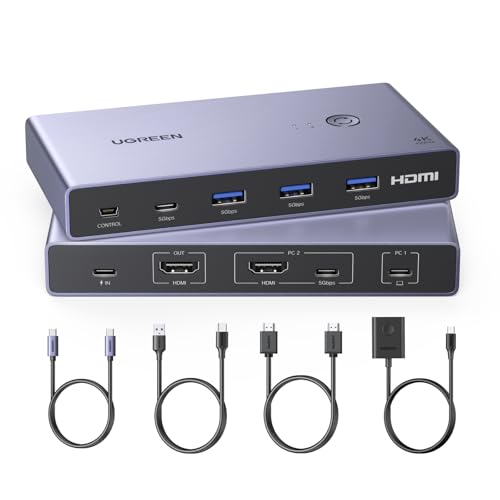
- Shares one HDMI monitor between two computers
- Four USB 3.0 ports support shared peripherals
- 4K at 60Hz and macOS compatibility without drivers
Best For: MacBook users building a simple one-monitor desk
Best Triple-Monitor USB-C KVM
Triple-Display KVM for Two Laptops

- Shares three monitors and USB peripherals between laptops
- Supports dual 4K at 60Hz plus 1080p at 60Hz
- macOS has MST limitations for independent displays
Best For: Compatible Windows laptops needing a three-monitor dock
Best Triple-Monitor Choice

- Controls two computers across three monitors
- Supports up to 8K@60Hz and high refresh rates
- Includes wired controller and multiple cables
Best For: Compatible triple-monitor workstations and creator setups
Best Simple Single-Monitor Pick

- Works with Mac, Windows, and Linux
- Shares one 4K@60Hz monitor between two computers
- Adds three USB-A and one USB-C port
Best For: Single-monitor desks needing plug-and-play switching
Best Simple Pick

- Shares two monitors between two computers
- Supports 8K@60Hz and 4K@120Hz
- Includes four USB 3.0 ports and wired remote
Best For: Mac-compatible dual-monitor HDMI work and gaming setups
Best Dual-Monitor HDMI Pick – 8K Dual-Monitor KVM
If you need kvm switches for mac with two HDMI-connected displays, this model combines dual-monitor control with a four-port USB 3.0 hub. It supports mirrored or extended displays, but your computer must provide two HDMI outputs and support the required display modes.
Best For: Mac or Windows users building a two-computer, two-monitor workstation with multiple shared USB peripherals.
Pros:
- Supports up to 8K at 60Hz and 4K at 120Hz.
- Shares four USB 3.0 peripherals between two computers.
- Includes panel-button and wired-controller switching.
- External 12V power helps support connected USB devices.
Cons:
- Requires two HDMI outputs for extended dual-monitor use.
- Does not support keyboard hotkey switching.
- High-power USB devices may require the included power adapter.
This is a feature-rich choice for a dual-screen desk, provided your Mac or PC has the necessary HDMI outputs. Its external power supply and USB hub are useful for peripherals such as printers, webcams, and scanners.
Best Thunderbolt Pick – Thunderbolt 4 KVM Switch
For Mac users with Thunderbolt or compatible USB-C equipment, this Sabrent model offers a high-bandwidth way to share displays and peripherals between two computers. It combines Thunderbolt 4, USB-A connectivity, and laptop power delivery in an aluminum enclosure.
Best For: macOS users with Thunderbolt 4 or DP Alt Mode USB-C computers who want fast peripheral sharing and high-resolution display output.
Pros:
- Thunderbolt 4 connectivity supports speeds up to 40Gbps.
- Provides three Thunderbolt 4 ports and four USB-A ports.
- Supports up to 8K at 60Hz or 5K at 60Hz on a compatible display.
- Includes a 24V/5A adapter with up to 60W PD3.0 charging.
Cons:
- Requires compatible Thunderbolt 4 or DP Alt Mode host devices.
- Dual-screen use is limited to up to 4K at 60Hz.
- The listing provides no warranty.
This is the most suitable option here for a modern Mac setup built around Thunderbolt 4. Check your computer, display, and cable compatibility before buying, especially if you need more than one display.
Best Value Dual-Screen Pick – 8K HDMI KVM
This HDMI model is a practical option among kvm switches for mac when you want to share one keyboard, mouse, monitor pair, and USB accessories between two computers. It supports Mac systems and offers both mirrored and extended display modes, subject to the computer’s available HDMI outputs.
Best For: Home offices, gaming desks, and workstations that need dual-monitor switching with shared USB 3.0 accessories.
Pros:
- Supports 8K at 60Hz and 4K at 120Hz.
- Shares four USB 3.0 devices between two computers.
- Offers one-touch switching from the unit or wired controller.
- Includes a 12V adapter for more stable USB operation.
Cons:
- Requires two HDMI outputs and compatible extended or mirrored display support.
- Keyboard hotkey switching is not supported.
- Passive adapters or standard conversion cables may not carry video signals.
Its combination of high refresh-rate support and dual-monitor functionality makes it appealing for mixed work and gaming setups. Confirm that your Mac or PC can provide the required HDMI signals, and use an active adapter when necessary.
Best Basic Legacy Pick – USB VGA KVM Switch
If your Mac setup uses older VGA equipment, the IOGEAR GCS22U provides a straightforward way to share one VGA monitor, USB keyboard, and USB mouse between two computers. It is a basic, cable-included solution rather than a modern high-resolution KVM.
Best For: Older Mac, Windows, or Sun computers with VGA video and USB peripherals.
Pros:
- Supports two computers through a single VGA monitor setup.
- Includes the required cables for an out-of-box installation.
- Switches through a convenient six-foot wired remote button.
- Requires no power adapter.
Cons:
- VGA resolution support is limited to 2048 × 1536.
- Designed for one monitor rather than dual-display setups.
- Not suitable for modern HDMI or Thunderbolt-only computers without compatible active conversion hardware.
This is a sensible low-complexity choice when compatibility with legacy VGA equipment matters more than modern resolution or bandwidth. For newer Macs, verify that your adapters and outputs can provide a usable VGA signal.
Best Dual-Monitor Docking KVM – AV Access 8K Dual-Monitor KVM
For shoppers comparing kvm switches for mac, the AV Access B10 stands out as a full desk hub for a USB-C laptop and a desktop PC. It combines KVM switching, dual-monitor support, USB connectivity, Ethernet, audio, SD-card access, and up to 100W laptop charging in one setup.
Best For: Hybrid workers and power users who need one shared dual-monitor workstation for a USB-C laptop and desktop.
Pros:
- Supports two computers and two monitors, with switching from the top button or wired remote.
- Offers dual 8K at 60Hz or dual 4K at 165Hz on the desktop side, with high-refresh gaming support.
- Provides one-cable USB-C docking with dual 4K at 60Hz, up to 10Gbps data, and up to 100W charging.
- Includes multiple USB ports, Gigabit Ethernet for both computers, audio, and SD-card connectivity.
Cons:
- On macOS, two external monitors mirror rather than extend because of MST limitations.
- Mac mini connections require specific HDMI and USB-C/DisplayPort cabling, and some cables are not included.
- Actual laptop resolution and refresh rate depend on the computer’s graphics and USB-C video capabilities.
This is a feature-rich choice when you want a KVM and docking station together, but Mac users who require two independently extended external displays should consider a different AV Access model.
Best Compact Single-Monitor KVM – UGREEN USB-C and HDMI KVM
The UGREEN CM731 is a straightforward option among kvm switches for mac when one HDMI monitor is enough. It lets a USB-C laptop and another computer share a display plus four USB peripherals, with physical-button or wired-controller switching.
Best For: MacBook and desktop users who want to share one HDMI monitor, keyboard, mouse, storage, or printer.
Pros:
- Supports up to 4K at 60Hz, along with HDR10+, HDCP 2.2, and 3D support.
- Shares four USB 3.0 ports, including three USB-A ports and one USB-C port.
- Works with Windows, macOS, and Linux without additional drivers or software.
- Includes an HDMI cable, USB-C cable, USB-A-to-C data cable, and wired desktop controller.
Cons:
- Supports only one monitor, and the monitor must use HDMI.
- It does not offer automatic or hotkey switching.
- The power adapter and power cable are not included; a power supply is recommended for high-power USB devices.
Choose this model for a simple, compact one-monitor setup. Before buying, verify that the laptop’s USB-C port supports full video and audio transmission and plan for a separate power supply.
Best Triple-Monitor USB-C KVM – Triple-Display KVM for Two Laptops
This USB-C docking KVM targets demanding laptop workspaces, making it an interesting but important-to-check option among kvm switches for mac. It can share three monitors and four USB 3.1 peripherals between two laptops, while also providing 100W Power Delivery and wired-remote switching.
Best For: Windows-focused users with compatible USB-C laptops who need a three-monitor, two-laptop workstation.
Pros:
- Supports three monitor outputs through two HDMI ports and one DisplayPort, with up to dual 4K at 60Hz plus 1080p at 60Hz.
- Provides four USB 3.1 Gen 2 ports with up to 10Gbps transfer speeds.
- Includes 100W Power Delivery input, with approximately 73–80W delivered to the laptop after system and cable consumption.
- Supports Windows, macOS, Linux, and Chrome OS, with panel-button and wired-remote switching.
Cons:
- macOS does not support three independently extended displays through MST; the monitors mirror or extend one different screen from the Mac.
- Three-screen output requires compatible USB-C video, data, PD, and multi-display support; the notes recommend 11th-generation or newer CPUs.
- Short, suitable USB-C, DisplayPort, and HDMI cables are required to help avoid flickering or black screens.
This is a strong multi-display dock for compatible Windows laptops, but Mac buyers should treat the MST limitation as decisive: it is not suited to a Mac workflow requiring three independently extended screens.
Best Triple-Monitor Choice – UGREEN 8K Triple-Monitor KVM
For demanding Mac workstations that need multiple displays, this UGREEN model is one of the more capable kvm switches for mac-style setups, with support for two computers, three monitors, and shared USB peripherals. It is best suited to systems that can independently drive three displays and have the required DisplayPort and HDMI outputs.
Best For: Content creators, IT professionals, and home-office users running compatible triple-monitor computers.
Pros:
- Supports two computers sharing three monitors and four USB 3.0 peripherals.
- Offers up to 8K at 60Hz, with 4K up to 240Hz and support for HDR10+, VRR, FreeSync, and G-Sync.
- Includes button and wired desktop-controller switching, plus DP and HDMI cables.
Cons:
- Both computers must support triple-monitor output and provide two DisplayPort plus one HDMI connection.
- Does not support keyboard hotkey switching or EDID emulation.
- Requires the included power adapter for normal operation.
This is a feature-rich option when your computers and monitors meet its demanding connection requirements. Verify display outputs and cable lengths before buying, particularly if you plan to use 8K.
Best Simple Single-Monitor Pick – S7232H USB 3.0 HDMI KVM
If you want a straightforward switch for a Mac and another computer, this single-monitor HDMI model combines display and USB sharing in one compact unit. It supports Mac along with Windows and Linux, and its plug-and-play design avoids driver installation or a separate power supply.
Best For: Users sharing one 4K monitor, keyboard, mouse, and other USB accessories between two computers.
Pros:
- Shares one monitor and four USB 3.0 ports between two computers.
- Includes three USB-A ports and one USB-C port for flexible peripheral connections.
- Supports 4K at 60Hz, HDCP 2.2, and switching from either the unit or wired remote.
Cons:
- Limited to one shared monitor.
- The supplied notes describe HDMI connectivity rather than DisplayPort or multi-monitor support.
- USB-C is listed as a peripheral port, so it should not be assumed to provide video input.
This is a practical choice for a conventional one-screen desk, especially if you value simple installation and a useful mix of USB-A and USB-C ports over multi-monitor capability.
Best Simple Pick – 8K Dual-Monitor KVM Switch
For Mac users who need two screens and fast peripheral switching, this HDMI KVM handles two computers with dual-monitor mirror or extend modes. It supports Windows, Mac, and Linux, while the powered design helps maintain stable operation with high-resolution displays and connected USB devices.
Best For: Dual-monitor work, design, and gaming setups using HDMI-equipped computers.
Pros:
- Controls two computers with one keyboard, mouse, and two monitors.
- Supports up to 8K at 60Hz and 4K at 120Hz.
- Provides four USB 3.0 ports, wired-remote switching, and a 5V/2A power adapter.
Cons:
- It is an HDMI-based switch, so compatibility depends on the computers and monitors having suitable HDMI connections.
- A powered setup is required for stable operation.
- Dual-monitor support is limited to the stated mirror and extend modes.
With its high-resolution support and dual-display layout, this model is a strong fit for a modern two-screen desk. Confirm your Mac’s HDMI connection path and monitor requirements before purchasing.
How We Picked the Best Kvm Switches for Mac
We selected these models based on Mac compatibility, supported display connections, resolution and refresh-rate claims, USB peripheral sharing, switching methods, and suitability for common home-office and professional setups. The list includes simple single-monitor switches as well as advanced KVM docks for multiple displays and laptops.
Because Mac video support varies by model, operating system, and connection type, treat advertised specifications as a starting point. Confirm that your Mac supports the required USB-C, Thunderbolt, DisplayPort, HDMI, or Multi-Stream Transport configuration.
Quick Comparison
| Setup type | Best suited for | What to check |
|---|---|---|
| Single-monitor HDMI or USB-C | Most home offices and basic two-computer desks | Mac ports, 4K support, and included cables |
| Dual-monitor HDMI or DisplayPort | Productivity and multitasking across two systems | Extended-display support, not just mirrored output |
| Triple-monitor USB-C or MST | Advanced laptop workstations | macOS MST limitations, dock power, and display compatibility |
| Thunderbolt 4 | High-bandwidth Mac and laptop setups | Thunderbolt host support, charging, and peripheral bandwidth |
| VGA | Legacy computers and older monitors | Maximum resolution and analog-video limitations |
Key Buying Factors for Kvm Switches for Mac
Mac and Connection Compatibility
Identify the ports on every computer first. A USB-C Mac may require a USB-C-to-HDMI or DisplayPort path, while Thunderbolt 4 models need compatible Thunderbolt ports and cables. Also verify whether the switch supports macOS keyboard shortcuts, wake behavior, and hotkey switching.
Display Resolution and Refresh Rate
For office work, 4K at 60Hz is usually sufficient. Gaming and creative work may benefit from 4K at 120Hz or 144Hz, while 8K support provides more headroom but does not guarantee that every Mac can output 8K. Dual- and triple-monitor users should confirm bandwidth per display and whether screens can run as extended desktops.
USB and Power Features
Count the peripherals you need to share, such as a webcam, storage drive, microphone, or printer. USB 3.0 is preferable for faster devices, but high-speed accessories can consume bandwidth. Some KVM docks need external power and may provide laptop charging; others only switch data and video.
Switching and Physical Layout
Front-panel buttons, wired remotes, hotkeys, and automatic switching each suit different desks. A wired remote is useful when the KVM is hidden, while hotkeys are faster once configured. Check cable length and desk placement before buying.
Who Should Buy Which Kvm Switches for Mac?
- For a straightforward single-monitor desk: Choose a USB-C or HDMI KVM with 4K at 60Hz and USB 3.0 peripheral sharing.
- For two-monitor productivity: Select a dual-monitor model, but confirm genuine extended-display support with your Mac rather than mirrored output.
- For a high-end Mac workstation: A Thunderbolt 4 KVM offers the strongest bandwidth and cleaner one-cable connectivity when all devices are compatible.
- For multiple laptops: Consider a USB-C docking KVM with sufficient host power and the required number of display outputs.
- For older equipment: The VGA option is practical when legacy computers or monitors are still in use, though it lacks modern resolution and refresh-rate performance.
Before ordering, compare the KVM’s input and output layout with your actual cables, displays, and Mac model. This simple check prevents most compatibility surprises.