The best KVM switches let you control multiple computers with one keyboard, mouse, and display setup, reducing desktop clutter without sacrificing performance.
This roundup covers simple two-computer HDMI models, dual-monitor 8K and high-refresh options, multi-port office switches, and remote-access rack solutions.
Best 10 Kvm Switches Picks for 2026
Best Dual-Monitor Pick

- Dual-monitor copy or extended modes
- Up to 8K@60Hz and 4K@120Hz
- Four USB 3.0 peripheral ports
Best For: Two-computer dual-monitor workstations
Best Remote-Access Pick
- Wi-Fi 6 and wired connectivity
- 4K@30FPS passthrough with two-way audio
- Tailscale and self-hosted access options
Best For: Remote IT administration and home labs
Best Four-Computer Value
- Connects four computers to one monitor
- 4K@60Hz with HDR and HDMI 2.0
- Six shared USB ports
Best For: Four-computer single-monitor workstations
Best Triple-Monitor Dock
AV Access 8K KVM Docking Station

- Shares up to three displays between laptop and desktop
- 100W USB-C Power Delivery
- 10Gbps USB, Ethernet, SDXC, and audio
Best For: High-end triple-monitor laptop and desktop setups
Rack-Ready 8-Port Control

- Manages eight computers from one setup
- Includes eight HDMI/USB KVM cables
- Supports rack, panel, wired, and IR control
Best For: Rack-mounted multi-computer management
Dual-Display Productivity

- Shares two monitors between two computers
- Supports 4K at 60Hz and HDR
- Adds four USB 3.0 peripheral ports
Best For: Dual-monitor home and office workstations
Secure Remote Server Access

- Controls up to 32 servers at BIOS level
- Supports one local and one remote user
- Adds encryption and enterprise authentication
Best For: Secure data-center and server administration
Dual-Display Power User

- Dual-monitor control for two computers
- 4K at 144Hz and four USB 3.0 ports
- Panel and wired-controller switching
Best For: High-refresh dual-monitor workstations
Simple Single-Screen Switcher

- Shares one monitor between two computers
- 4K at 60Hz with USB 2.0 peripheral support
- Compact, plug-and-play design with wired controller
Best For: Basic HDMI dual-computer desks
Four-Computer Hub

- Shares one monitor across four computers
- 4K at 60Hz with USB 3.0 and USB-C
- Numbered remote and front-button switching
Best For: Multi-computer single-monitor workstations
Best Dual-Monitor Pick – 8K HDMI KVM for Two Computers
For users comparing kvm switches for a two-computer workstation, this model combines dual-monitor support with four shared USB 3.0 ports. It can run identical or independent content on the connected displays, provided each computer has two HDMI outputs and supports the required display modes.
Best For: Dual-monitor desktop setups that need high-resolution video and shared USB peripherals.
Pros:
- Supports up to 8K at 60Hz and 4K at 120Hz, with backward compatibility.
- Offers extended or mirrored display modes for two computers.
- Includes four USB 3.0 ports, external power, and a wired desktop controller.
Cons:
- Requires two HDMI outputs per computer for extended dual-monitor use.
- Keyboard hotkey switching is not supported.
- HDMI cables are not listed among the included components.
This is a strong choice when a dual-display workspace matters more than hotkey convenience. Check your computers’ graphics outputs before buying, and use the included 12V adapter when connecting higher-power USB devices.
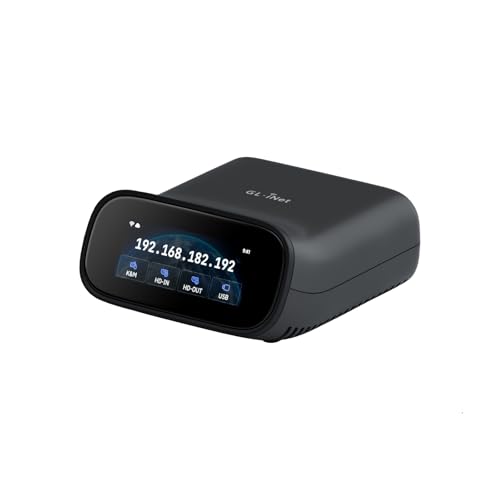
Best Remote-Access Pick – GL.iNet Comet Pro Remote KVM
Among kvm switches for remote administration, the GL.iNet Comet Pro stands out as a network-connected device rather than a conventional local desktop switch. It provides remote video access, two-way audio, secure Tailscale connectivity, and support for BIOS-level recovery tasks.
Best For: Home labs, IT support, and users who need remote access to Windows, macOS, or Linux systems.
Pros:
- Supports dual-band Wi-Fi 6 plus wired connectivity.
- Provides 4K video passthrough at 30 FPS and two-way audio.
- Offers web, app, Tailscale, and self-hosted access options.
- Can support remote recovery, including BIOS access and OS reinstallation.
Cons:
- Remote power control and hard-reset functions require separately sold extensions.
- Its 4K passthrough is limited to 30 FPS.
- It is designed for remote access rather than switching multiple local computers through one desk setup.
The Comet Pro is best evaluated as a remote KVM platform for administration and recovery. Its touchscreen and broad operating-system support simplify setup, while self-hosting gives advanced users more control over remote access.
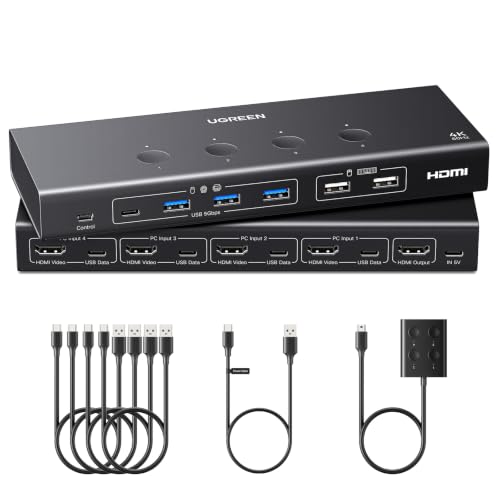
Best Four-Computer Value – UGREEN 4-Port HDMI KVM
If you need kvm switches for several computers sharing one screen, the UGREEN model connects four HDMI hosts to one monitor while sharing keyboard, mouse, and other USB devices. It also includes EDID emulation to help preserve display settings during source changes.
Best For: Offices, testing areas, and desks where four computers must share one monitor and USB peripherals.
Pros:
- Switches among four computers using a button or wired desktop controller.
- Supports up to 4K at 60Hz, HDR, 3D, HDMI 2.0, and HDCP 2.2/1.4.
- Provides four USB 3.0 and two USB 2.0 ports.
- EDID emulation can reduce display reconnection and window rearrangement.
Cons:
- Requires HDMI and USB-A-to-C data cables for each computer; cables and power adapter are not included.
- Supports one shared monitor, not a multi-monitor output.
- It is not supported with docking stations.
This UGREEN switch is a practical option when four hosts need centralized control without adding a second display. Plan for the required cables and connect external power for stable operation and USB peripheral support.
Best Triple-Monitor Dock – AV Access 8K KVM Docking Station
For demanding kvm switches setups, this AV Access unit combines switching with a triple-monitor docking station. It connects a USB-C laptop and a desktop PC while sharing displays, USB accessories, Ethernet, audio, and card access through one streamlined workstation device.
Best For: Laptop-and-desktop users who want triple displays, fast peripherals, Ethernet, and laptop charging in one setup.
Pros:
- Supports up to three shared displays with desktop output up to 8K at 60Hz.
- Provides up to 100W Power Delivery to a compatible USB-C laptop.
- Includes 10Gbps USB ports, 1Gb Ethernet, SDXC access, and a headset jack.
- Supports high-refresh modes, VRR, FreeSync, G-Sync, and HDR.
Cons:
- MacBooks support mirrored displays only, not independent extended output across multiple monitors.
- The laptop’s USB-C port must support video output.
- Triple-display support depends on the connected computer and compatibility requirements.
This is the most comprehensive choice for a mixed laptop-and-desktop desk, especially when charging and shared networking matter as much as display switching. Verify USB-C video support and operating-system display limitations before purchase.
Rack-Ready 8-Port Control – MT-VIKI 8-Port HDMI KVM
For managing several computers from one workstation, this 8-port HDMI KVM switch provides a practical rack-mounted setup. It supports up to eight computers through one monitor, keyboard, and mouse, with video up to 4K at 30Hz and three switching methods.
Best For: Server rooms, workstations, and users who need centralized control of up to eight HDMI-connected computers.
Pros:
- Controls up to eight computers from one keyboard, mouse, and monitor.
- Includes eight HDMI/USB KVM cables, rack ears, a desktop selector, and an IR remote.
- Offers panel, wired desktop-controller, and IR remote switching.
- Includes four USB 2.0 hub ports and supports wireless keyboard and mouse setups.
Cons:
- Video output is limited to 4K at 30Hz rather than 60Hz.
- Uses HDMI connectivity, so it may not suit DisplayPort-only systems.
This MT-VIKI model is a well-equipped choice when port count and rack compatibility matter most. Its included cabling and multiple control options make deployment straightforward, while the 30Hz 4K ceiling is worth considering for high-refresh workflows.
Dual-Display Productivity – UGREEN 2-Computer HDMI KVM
This UGREEN KVM switch is designed for users who need two computers to share two monitors, one keyboard, and one mouse. It supports extend or mirror modes, 4K at 60Hz, and USB 3.0 peripherals, making it a strong fit for multi-screen office setups.
Best For: Home offices and professional desks that require dual-monitor switching between two HDMI computers.
Pros:
- Supports two computers and two monitors with extend and mirror modes.
- Provides 4K at 60Hz video support, plus HDR and HDMI 2.0 compatibility.
- Includes four USB 3.0 ports, including USB-A and USB-C connections.
- Comes with HDMI and USB cables, power adapters, and a desktop controller.
Cons:
- Does not support EDID emulation or keyboard hotkey switching.
- Each computer requires two HDMI connections and one USB-A connection.
- The two monitors display video from the same selected computer, not both computers simultaneously.
Choose this model when dual-screen productivity and smoother 4K refresh are more important than hotkey convenience. Confirm that both computers support simultaneous dual displays and that your HDMI cable lengths meet the stated requirements.
Secure Remote Server Access – Eaton 32-Port KVM Over IP
For data centers and managed server environments, this Eaton KVM over IP switch provides BIOS-level access to as many as 32 computers or servers. Its 1U rackmount design supports local and remote users, virtual media, browser-based management, and enterprise authentication features.
Best For: IT teams and organizations that need secure remote administration of large server deployments.
Pros:
- Provides BIOS-level access for up to 32 computers or servers.
- Allows one local and one remote user to access server ports simultaneously.
- Supports IPv4 and IPv6, virtual media, and major web browsers and operating systems.
- Includes security features such as encryption, SSL certificates, RADIUS, LDAP/S, and Active Directory authentication.
Cons:
- Video support is limited to VGA or HDMI up to 1920 × 1200.
- Its enterprise-focused feature set may be excessive for a small office or home setup.
- Remote management requires network configuration and management software.
This Eaton switch is aimed at organizations where remote access, security controls, and high port density justify a professional KVM investment. TAA compliance and a three-year limited warranty add value for qualifying business and government deployments.
Dual-Display Power User – DisplayPort 2-Monitor KVM
For demanding workstations, this DisplayPort KVM switch lets you control two computers while sharing two monitors and up to four USB devices. It supports 4K at 144Hz, extended or copy display modes, and physical or wired-controller switching, making it one of the more capable kvm switches for a dual-screen setup.
Best For: Users who need two-monitor control across two computers and high-refresh-rate DisplayPort video.
Pros:
- Supports dual displays with extended and copy modes.
- Handles up to 4K at 144Hz with up to 48Gbps video bandwidth.
- Provides four USB 3.0 ports and panel or wired-controller switching.
- Includes a 12V power adapter for stable USB-device operation.
Cons:
- Each computer requires two DisplayPort cables and one USB cable; DisplayPort cables are not included.
- Computers must support multiple monitors and provide two DisplayPort outputs.
- Hotkey switching is not supported.
This is a strong choice for a dual-monitor desk, but setup requirements are more involved than with single-display KVM switches. Confirm your computers, graphics hardware, monitors, and cables support the desired resolution before buying.
Simple Single-Screen Switcher – HDMI 2-Computer KVM
This compact HDMI KVM switch allows two computers to share one monitor, keyboard, mouse, and other USB 2.0 devices. With 4K at 60Hz support, plug-and-play operation, and a desktop wired controller, it is a practical option for straightforward kvm switches setups.
Best For: Users sharing one HDMI monitor and a keyboard-and-mouse setup between two computers.
Pros:
- Switches one HDMI display and USB peripherals between two computers.
- Supports resolutions up to 4K at 60Hz and lower resolutions.
- Offers front-button or wired-controller switching.
- Requires no external power supply and supports hot-swapping.
Cons:
- Each computer and the monitor must have HDMI ports.
- HDMI cables are not included, and the product recommends a high-quality HDMI 2.0 cable no longer than 3.3 feet.
- It does not support hotkey switching and is not recommended for Mac devices.
For a basic two-computer, one-monitor arrangement, this model keeps installation and daily switching simple. Check port compatibility carefully, especially if you plan to use adapters or a Mac computer.
Four-Computer Hub – HDMI 4-Port KVM
When several computers need access to one display and one set of peripherals, this four-port HDMI KVM switch provides button-based or wired-remote selection. It supports 4K at 60Hz and includes three USB 3.0 ports plus USB-C, making it a useful expansion-focused choice among kvm switches.
Best For: Offices, labs, and home workstations that need to share one monitor and peripherals across four HDMI computers.
Pros:
- Connects up to four computers to one monitor, keyboard, and mouse.
- Supports 4K at 60Hz and lower resolutions.
- Includes three USB 3.0 ports and one USB-C port for shared devices.
- Provides numbered wired-remote selection, front buttons, and LED status indicators.
Cons:
- Designed for one shared monitor rather than a multi-monitor setup.
- Hotkey switching is not supported.
- Requires HDMI-equipped computers with USB ports.
This model stands out when the main requirement is switching among four computers rather than driving multiple displays. Its included cables and dedicated numbered controller can make a larger setup easier to organize.
How We Picked the Best Kvm Switches
We focused on the features that determine whether a KVM switch works smoothly in a real workstation, gaming desk, studio, or server room. Our comparison considers supported video resolution and refresh rate, the number of computers and displays, USB connectivity, switching methods, remote-management capabilities, and installation format.
We also separated basic single-display models from dual-monitor, high-refresh, rack-mounted, and KVM-over-IP designs. A switch that is excellent for sharing one monitor between two laptops may be a poor fit for an eight-computer rack or a dual-display gaming setup.
Quick Comparison
- Two computers, one display: Choose a compact HDMI KVM with 4K at 60Hz and USB peripheral sharing.
- Two monitors: Look for dual-HDMI or DisplayPort support and confirm whether the switch provides extended desktop mode rather than mirroring only.
- High-refresh gaming: Prioritize DisplayPort or HDMI specifications supporting 4K at 120Hz or 144Hz, along with compatible cables.
- Three or more computers: Four- and eight-port models reduce the need for additional adapters and hubs.
- Server rooms: Rack-mount and KVM-over-IP switches provide centralized control, remote access, and better cable management.
- Remote troubleshooting: A remote KVM can provide access over a network, but network reliability and security become essential.
Key Buying Factors for Kvm Switches
Video Support
Check the exact maximum resolution, refresh rate, color depth, and number of displays supported simultaneously. “8K” support does not necessarily mean 8K at high refresh rates, and some models limit performance when multiple outputs are active. Make sure the switch matches your computer ports and monitor inputs.
USB and Peripheral Compatibility
USB 3.0 is useful for storage devices, webcams, and other higher-bandwidth accessories, while basic keyboard-and-mouse switching may work over slower USB standards. Confirm the number of shared ports and whether your peripherals require special drivers.
Switching and Setup
Physical buttons, wired desktop controllers, infrared remotes, keyboard hotkeys, and software controls offer different levels of convenience. Hotkeys are quick at a desk, while a wired controller can be easier when the switch is hidden away.
Compatibility and Cabling
Verify HDMI versus DisplayPort support, operating-system compatibility, audio handling, HDCP requirements, and cable lengths. High-resolution and high-refresh setups are especially sensitive to cable quality.
Who Should Buy Which Kvm Switches?
Choose a basic two-port HDMI model for a home office with one monitor and two computers. Choose a dual-monitor KVM if you regularly move between systems while keeping an extended desktop. Choose a high-refresh DisplayPort or 8K model for gaming, creative work, or demanding video workflows. Choose a four- or eight-port switch for labs, trading desks, or offices managing several computers. Choose a rack or KVM-over-IP model when administrators need centralized or remote server access.
Before buying, count your computers, monitors, USB devices, and required cables. Matching those requirements first is more important than choosing the highest headline resolution.